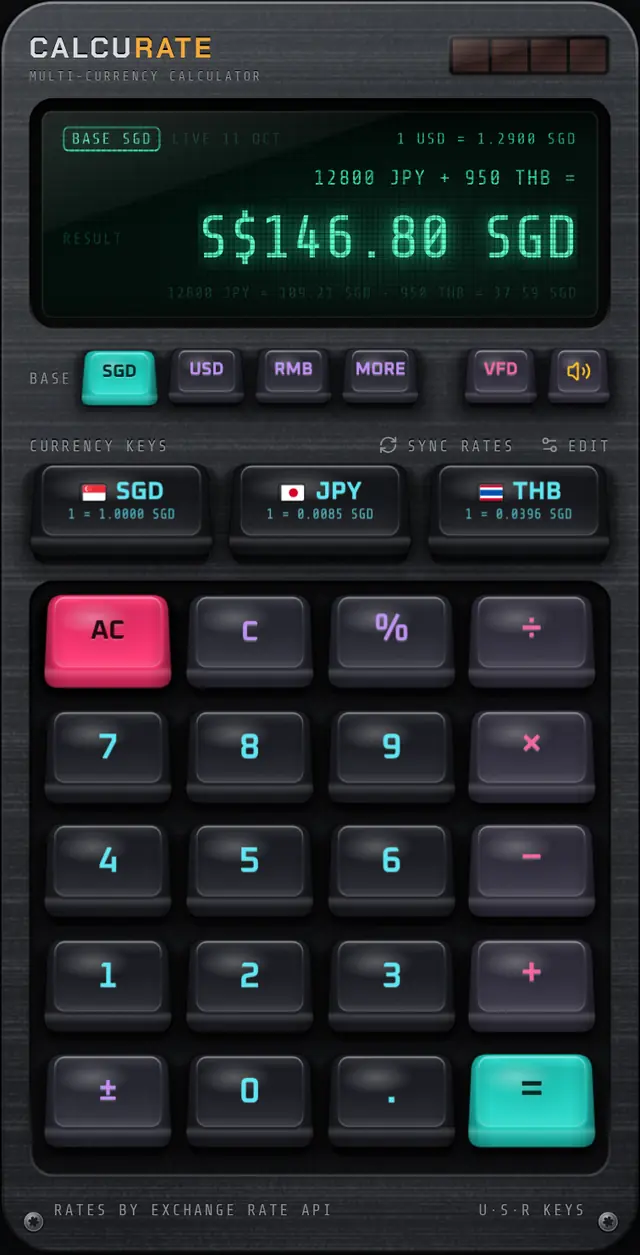
How to Set Up a Currency Converter Widget on iPhone
Add a currency converter widget to your iPhone home screen in under a minute: pick a size, set the currency pair, and convert amounts without opening the app.
To add a currency converter widget on iPhone, touch and hold an empty spot on the home screen, tap the add button, search for the app, pick a size and tap Add Widget. Then touch and hold the widget, choose Edit Widget, and set the currencies to convert from and to. Interactive number pads inside widgets need iOS 17 or later.
- Home screen widgets are added by touching and holding the home screen, then using the add (+) or Edit option.
- Each widget is configured separately with Edit Widget, so you can keep several currency pairs side by side.
- Small widgets show a rate both ways, medium widgets add common amounts, and large widgets can include a number pad.
- Typing directly into a widget relies on interactive widgets, which arrived in iOS 17.
- Open the app once after installing so the widget has exchange rates to show.
A currency widget puts the number you keep looking up right on your home screen. Instead of opening an app, waiting for it to load and typing a pair, you glance at your phone and the rate is already there. This guide walks you through adding a currency converter widget on iPhone, choosing the right size, setting the currencies, and getting the most out of it on a trip or at work.
How do you add a currency converter widget on iPhone?
You add it from the home screen edit mode. The exact button label has shifted a little between iOS versions, but the flow is the same.
- Install a currency app that offers a widget and open it once. Many widgets read their data from the app, so this first launch gives the widget something to show.
- Go to your home screen and touch and hold an empty area until the app icons start to jiggle.
- Tap the add (+) button in the top corner, or tap Edit and then Add Widget, depending on your iOS version.
- Search for the app by name, or scroll the list until you find it.
- Swipe left and right through the size previews and pick one.
- Tap Add Widget, drag it where you want it, then tap Done.
On iPad the steps are the same. You touch and hold the home screen, add the widget, and place it among your apps.
How do you choose which currencies the widget shows?
You set the pair with Edit Widget. Touch and hold the widget (not in jiggle mode, just a normal long press) and tap Edit Widget. A small panel flips open with the options the developer provides.
In Calcurate, the widget is called Currency and the panel has two settings, Convert from and Convert to. Set "from" to the currency you see on price tags and "to" to the currency you think in. If you live in Singapore and you are visiting Bangkok, that would be THB to SGD.
Tip: Each copy of a widget keeps its own settings. Add the widget twice and you can have USD to SGD on one and EUR to GBP on another, side by side or in different home screen pages.
Which widget size should you pick?
Pick by how much you want to do without opening the app. iPhone widgets come in Small, Medium and Large, and a well-designed currency widget uses the extra space for something useful rather than just a bigger number.
| Size | What it shows | Best for |
|---|---|---|
| Small | The exchange rate in both directions | A quick sense of value |
| Medium | The rate plus three round amounts already converted | Shopping and menus |
| Large | An amount field over a number pad | Converting exact prices on the home screen |
Small: the rate both ways
The small size answers "what is one unit worth?" in both directions. At an example rate, the widget might read:
Seeing both lines matters. The first is useful when you look at a price in baht. The second is useful when you are deciding how much cash to withdraw.
Medium: common amounts, already done
The medium size adds three round amounts, converted for you. At the same example rate, a line like this saves you the mental maths on most everyday prices:
If you know 100 baht is about 4 dollars, you can scale it in your head for 300 or 500. That is often all you need at a market stall.
Large: a number pad on the home screen
The large size turns the widget into a small converter. In Calcurate it shows an amount field above a number pad. Each key press updates the converted result right there, without opening the app. A ⇄ key swaps the pair and Clear empties the field. You can read more about all three layouts on the home screen widgets page.
Why does the number pad need iOS 17?
Because buttons that work inside a widget depend on interactive widgets, which Apple added in iOS 17. Before that, tapping anywhere on a widget simply opened its app. From iOS 17, a widget can run small actions, like adding a digit, while staying on the home screen.
So if you are on an older version of iOS, the Large widget's number pad will not work. The Small and Medium sizes do not need typing, so they are the ones to use. To check your version, open Settings, then General, then About.
Where do the widget's exchange rates come from?
From the app. An iPhone widget is a lightweight view, and iOS decides when to refresh it. In Calcurate, the app hands the widget its rates each time the app loads them, and the widget shows OPEN APP FOR RATES until that first sync, which is why opening the app once after installing matters.
The app itself uses live rates updated once a day and falls back to European Central Bank reference rates if needed. These are mid-market reference rates, the midpoint between buying and selling prices in the wholesale market. Your bank or card will usually charge something on top, and that varies by provider. If you want the background, read what the mid-market rate is or see how the app handles live exchange rates.
Tip: Before a flight, open the app while you still have a connection. That hands the widget recent rates to show when you land. The calculator itself only reuses cached rates for an hour; after that, without a connection, it uses bundled rates that go out of date and shows OFFLINE.
What happens when you tap the widget?
Tapping the rate or the amount opens the app on a convert sheet with the keyboard already up. That is handy for typing an exact amount, and if you close the sheet you have the full calculator, for example to add a hotel bill in one currency to a taxi fare in another.
That kind of mixed sum is where a widget stops and the app takes over. Inside the app you can type 120 USD + 85 SGD + 300 RMB and get one total in the currency you choose. The multi-currency maths page explains how that works.
How can you get more out of a currency widget?
Place it where your thumb already goes. A few habits make a widget far more useful than a buried app icon.
- Put it on your first home screen during a trip, then move it back afterwards.
- Use Medium for travel, Large for work. Round amounts cover most shopping, while exact pricing (quotes, invoices) is easier with the number pad.
- Set the pair you read most often, not the one that feels logical. If menus are in yen, make JPY the "from" currency.
- Keep two widgets for two-country trips. A week split between Malaysia and Thailand is easier with one MYR widget and one THB widget.
Common problems and quick fixes
Most widget issues come down to data or iOS version.
- The widget says OPEN APP FOR RATES or shows old numbers. Open the app so it can fetch rates, then go back to the home screen.
- You cannot find the app in the widget list. Open the app once after installing, which can help iOS list its widgets, then search again.
- The number pad does nothing. Check that you are on iOS 17 or later.
- The currency you need is missing. The widget can only offer the currencies the app supports. See the list of supported currencies.
Using Android as well? The steps differ a little, and so do the widget sizes. Our guide to the currency converter widget on Android covers it, and the FAQ answers other common questions.
FAQ
Questions people also ask
How do I add a currency converter widget to my iPhone home screen?
Touch and hold an empty area of the home screen until the icons jiggle, tap the add (+) button or Edit and then Add Widget, search for your currency app, choose a size and tap Add Widget. Tap Done to finish.
How do I change the currencies shown in an iPhone widget?
Touch and hold the widget, tap Edit Widget, and change the currency settings. In Calcurate these are called Convert from and Convert to.
Why does my iPhone widget number pad not work?
Widgets that respond to taps without opening the app require iOS 17 or later. Check Settings, General, About to see your iOS version, and update if your iPhone supports it.
Can I have more than one currency widget on my iPhone?
Yes. Add the widget again and configure each copy with its own currency pair, for example one for USD to SGD and another for THB to SGD.